Posted on Leave a comment

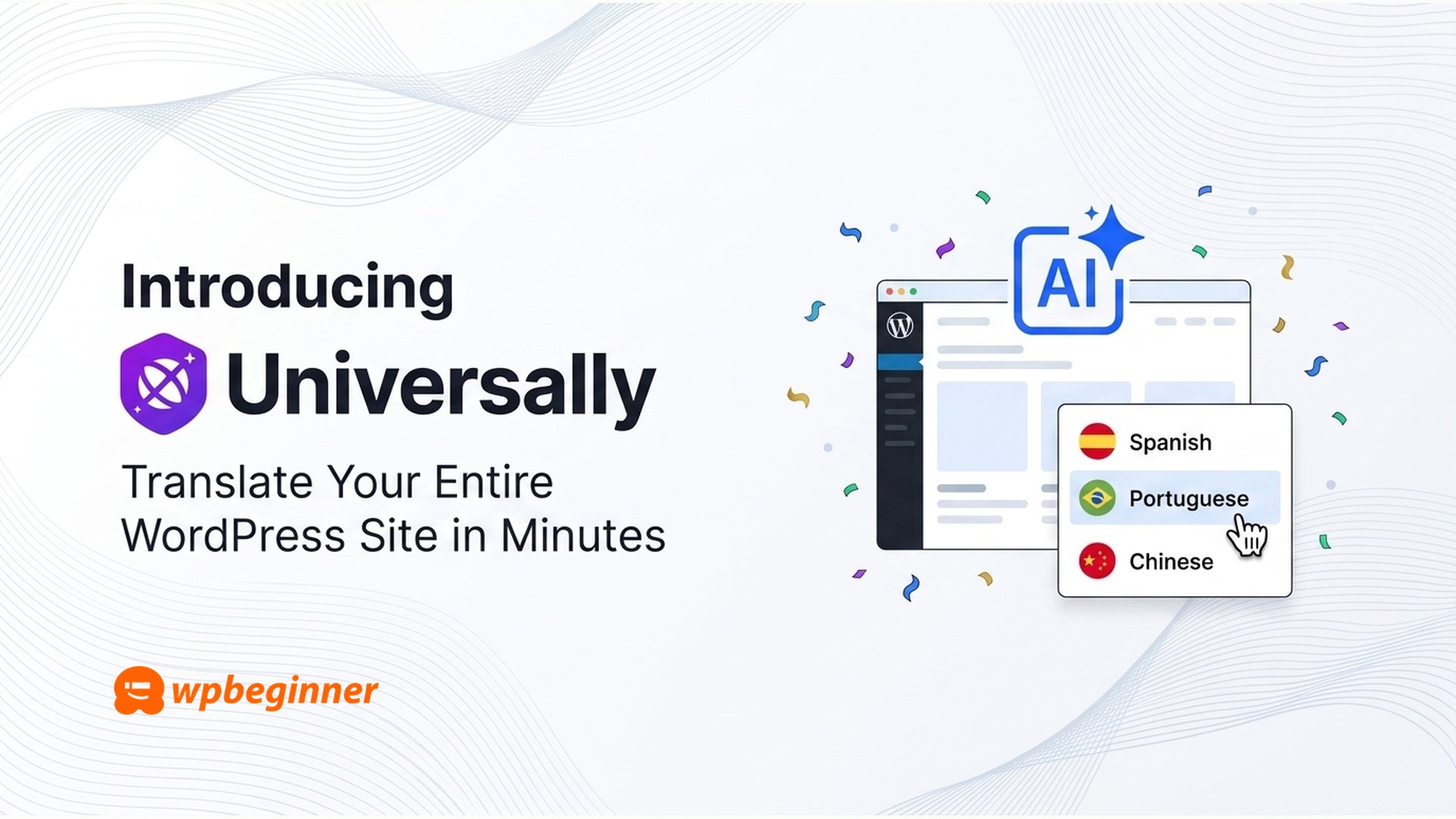
Universally: AI-Powered WordPress Translation for Global Reach

Universally: AI-Powered WordPress Translation for Global Reach

Have you ever dreamed of instantly multiplying your site traffic by connecting with audiences from around the world who don’t speak English?

Picture this: with just a few clicks, your entire WordPress website becomes available in over 70 languages—no developers, no costly translators needed.

Unfortunately, most existing translation solutions are either prohibitively expensive, painfully slow, or designed in a way that harms your SEO as soon as you activate them.

It’s absurd that speaking to a global audience in their native tongue has to be such a challenge.

That’s exactly why we’re introducing Universally, an AI-driven translation platform that transforms your WordPress site into a fully multilingual, SEO-optimized experience in minutes.

In short, Universally is the ultimate “set-it-and-forget-it” translation engine you’ve been waiting for.

The idea for Universally came from a personal struggle. For years, I wanted to translate WPBeginner and my other eCommerce sites to serve international users who had requested it. So last year, I decided to give it a shot.

The process of building a multilingual website in WordPress turned out to be far bumpier than I’d hoped—and this difficulty extends to most medium and large content sites.

The reason? Every popular WordPress translation plugin stores translations in the database inefficiently. I tested them all on WPBeginner, and each one made the admin area so sluggish that the post editor became almost unusable.

On our eCommerce sites (both WooCommerce and Easy Digital Downloads), the performance hit affected the entire checkout process—bad news for conversions and revenue.

Out of every plugin I tried, only one worked well, but it required converting the site into a WordPress multisite network, which introduces its own complexities.

Going through this ordeal, I kept wondering why it’s so hard. Clearly there had to be a better way.

I looked into well-known SaaS platforms offering AI translations, and they performed admirably. But the cost for WPBeginner alone would have been hundreds of thousands of dollars. Adding my other brands like WPForms and AIOSEO would push that into seven figures.

In the age of AI, translation shouldn’t be that expensive. Modern AI models have improved so much that small businesses without translations are missing out.

After navigating this painful process myself, I asked our team to build a platform we could use for our own brands and share with our community.

Why? Because in 2026, small businesses and eCommerce owners need an easy and affordable way to translate their sites without sacrificing speed.

That’s what Universally delivers.

The best part: it works on any website platform—WordPress, Shopify, Wix, Lovable, Replit, and more.

You simply connect your site, select your languages, and let our intelligent multilingual AI expand your global reach.

During our internal launch and private beta, we’ve already translated over 250 million words.

Here’s how it works.

Universally is an AI-powered translation platform built for WordPress site owners, WooCommerce stores, SaaS companies, and agencies that need to go multilingual without the usual headaches.

Once installed, it automatically scans every translatable element on your site—blog posts, buttons, menus, form labels, image alt text, schema.org data, product descriptions in WooCommerce, and more—and translates them into 70+ languages in minutes.

Unlike traditional plugins, Universally stores nothing extra in your WordPress database. No duplicate posts, no bloated tables, no slowdowns. Your translations live in the cloud and are delivered from edge servers near your users. That means international visitors often see a faster version of your site, never a slower one.

If you’ve ever worked with a translator, you know how tedious it is: export strings to a spreadsheet, send it off, wait two weeks, only to find the context is wrong. Then repeat for every language.

Universally eliminates that back-and-forth entirely.

Choose your target languages once, and within minutes your entire site—including old blog posts, archived product pages, and hidden checkout strings—is live in every selected language.

And it doesn’t stop there. Every time you publish or edit content in your source language, Universally automatically catches the change and updates the translation across all language versions. You never have to remember to manually translate anything again.

For quality, Universally delivers 90-95% AI accuracy out of the box, with optional professional human translation for critical pages like pricing, checkout, or legal terms.

Multilingual SEO is where most translation tools quietly fall apart.

Google has strict rules for multilingual sites: hreflang tags on every page, translated meta titles and descriptions, properly structured URLs, and multilingual XML sitemaps. For Arabic and Hebrew, you need right-to-left (RTL) support. Miss any of those, and Google ignores your translated pages or flags them as duplicate content.

Universally handles all of it automatically.

It provides automatic hreflang tags, translated title tags and meta descriptions, translated Open Graph and Twitter Card tags, schema.org/JSON-LD structured data translation, automatic lang attributes and dir=”rtl” for RTL languages, multilingual XML sitemaps, internal link rewriting (so /about becomes /fr/about on French pages), and support for subdirectory, subdomain, or separate-domain URL structures.

Have you ever seen a brand’s product name awkwardly translated into a random foreign word? It’s painful.

Universally’s AI Glossary lets you lock down specific terms—your brand name, product names, technical jargon, legal wording—so they either stay untouched or get forced into a specific translation across every language.

You can build the glossary manually, let the AI suggest entries based on your content, or import your own terminology.

Choosing the language for your visitors should be seamless. Universally offers a language switcher that you can place in multiple locations, with four built-in styles: bottom right, bottom left, top right, and top left. It also includes a dedicated language switcher block for your pages.

Now, let’s talk about cost.

Universally is the most affordable AI translation tool on the market. Compared to platforms like Weglot, Universally is up to 50% cheaper.

Here’s how to try it on your site:

First, sign up for a free Universally account. The free plan includes one site, one language, and 2,000 translated words per month—no credit card required.

Second, install the Universally plugin from the Universally site.

Third, paste your API key into the plugin settings.

Fourth, choose your source language and target languages, then save.

Universally begins translating immediately, and your language switcher appears automatically. If you need more words or languages, paid plans start at just $7.50 per month when billed annually.

Looking ahead, our goal is to help small businesses compete with the big guys. Every large company already translates its website to expand global reach. We’re building Universally to level the playing field so small businesses can do the same.

We’re building something truly special, and I’d love for you to join us on this journey while expanding your own global audience. Our aim is to make Universally the best translation solution on the market, and the best way to achieve that is by listening to you.

If you’ve been putting off translating your site because it felt too expensive, too technical, or too fragile, give Universally a real look. The free plan is genuinely free, and you can see your website running in a second language in less than ten minutes.

Thank you for your continued support of WPBeginner and the products I’ve been part of. I’m excited to help you reach a global audience without the complexity, cost, or maintenance headaches that have held WordPress site owners back for years.

Let’s make websites universally accessible.
Posted on Leave a comment

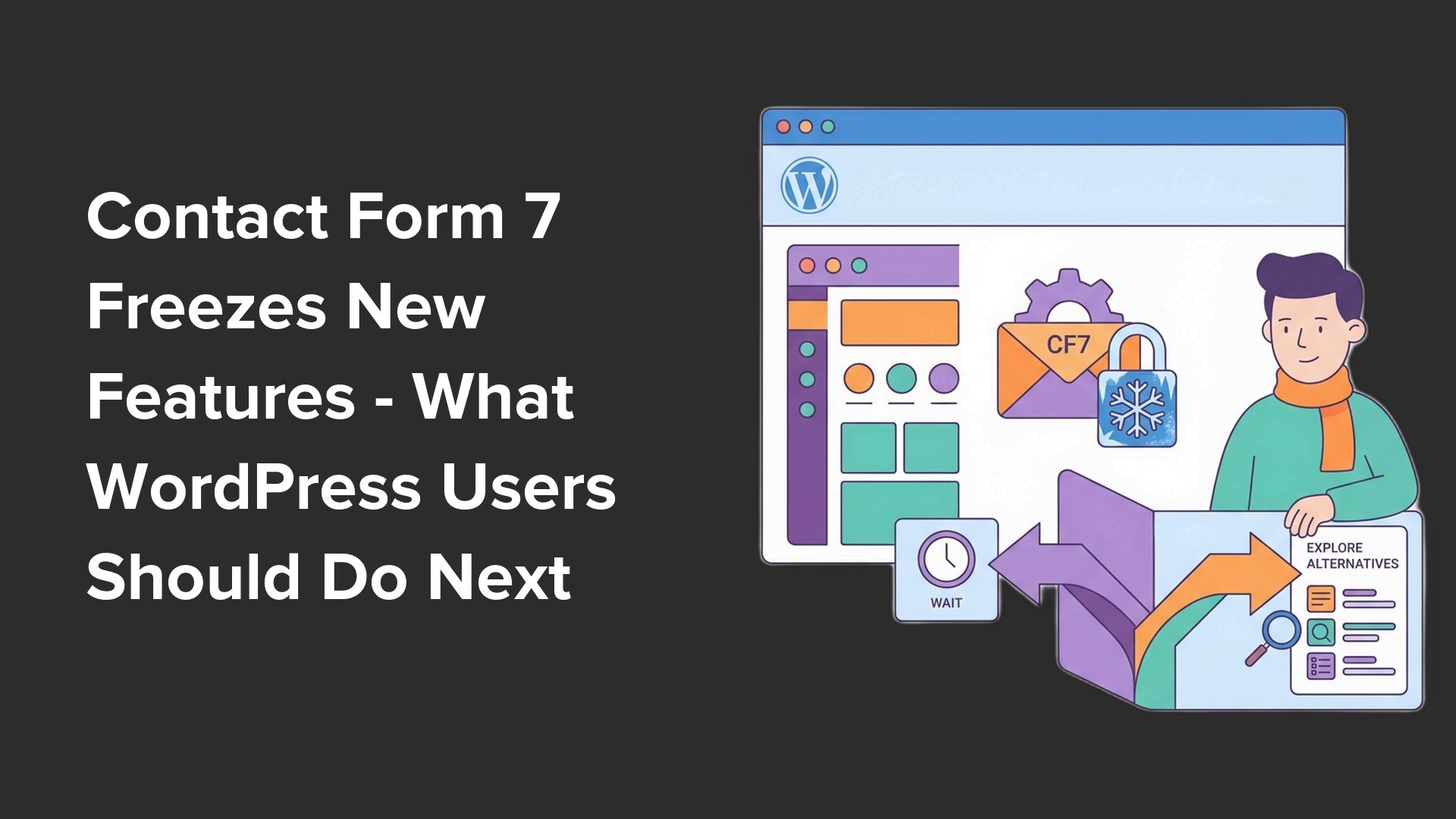
Contact Form 7 Hits Feature Freeze: What You Need to Know

Contact Form 7 Hits Feature Freeze: What You Need to Know

For years, Contact Form 7 has been a go-to solution for WordPress users looking to add simple contact forms. It’s a choice that millions have made, and it served its purpose well. But the landscape has shifted.

At WordCamp Asia 2026, the plugin’s creator, Takayuki Miyoshi, announced that after version 6.2, Contact Form 7 will stop receiving new features. His attention is now on a new project, Contactable.io, which isn’t expected until 2028.

Your existing forms won’t break tomorrow, but a plugin in ‘feature freeze’ will gradually become outdated. This makes now the ideal time to switch to a more modern form builder before your forms become complex and migration gets harder.

The positive side is you don’t have to rebuild everything from zero. After reading this guide, you’ll understand the implications of the announcement and learn how to migrate your Contact Form 7 forms to a more advanced form builder using a simple import tool.

The dramatic headlines about Contact Form 7 being abandoned might make you panic, but let’s break down what’s actually happening. First, the plugin isn’t vanishing overnight. It’s entering a maintenance phase, which still has significant consequences for your website’s future.

Here’s what every Contact Form 7 user should know before deciding their next move. Version 6.2 will be the last major release with new capabilities. After that, only critical security fixes and bug patches will be applied. This means your forms won’t become an immediate security risk, but don’t expect any modern tools or integrations like AI form generation, conditional logic, or seamless payment fields. The successor project, Contactable.io, is years away, likely not launching before 2028, which is a long wait when proven alternatives already exist.

As your site grows, your forms often need to become more sophisticated. You might add extra fields, set up custom email routing, or integrate with a CRM. What takes minutes to migrate today could become a frustrating weekend project later. The smart approach is to migrate now while your forms are still functional and up-to-date.

We’ve tested dozens of contact form plugins, and we keep returning to WPForms. It strikes an excellent balance between simplicity for beginners and advanced features for growing websites. In our view, this is exactly what Contact Form 7 users need.

The premium version of WPForms offers over 2,100 ready-made form templates, smart conditional logic, and seamless payment integrations. You can even create multi-page forms to boost conversion rates. However, the free WPForms Lite plugin already has everything a former Contact Form 7 user requires, including a drag-and-drop builder that lets you create professional forms without writing code.

Better yet, WPForms includes a built-in import tool for Contact Form 7. You can migrate all your existing forms with just a few clicks. The tool reads your old forms and recreates them in its modern interface, preserving field labels and notification settings. This is essential for anyone wanting to switch to a secure, evolving form builder without starting over.

First, install and activate the WPForms plugin. You can download the Lite version for free from WordPress.org. For this guide, we’ll use the Lite version so you can migrate regardless of budget. If you later need advanced features like payment acceptance, conversational forms, or email marketing integration, you can upgrade at any time. If you’re new to installing plugins, check our step-by-step guide.

Once activated, WPForms will launch a setup wizard. Complete it to get started quickly. If you have the premium version, enter your license key. When prompted to create your first form, skip it since we’ll import existing ones.

Now, navigate to WPForms » Tools. If not already selected, click the ‘Import’ tab. From the dropdown, choose ‘Contact Form 7’ and click ‘Import’. WPForms will scan your site and list all your Contact Form 7 forms.

You’ll see two columns: ‘Available Forms’ and ‘Forms to Import’. To move all forms, click ‘Select All’. Alternatively, check individual forms. This is a good chance to clean up by leaving out test or duplicate forms. Then click ‘Import’ to start the migration.

After the import, you’ll see a success message. Review the report carefully. Forms imported successfully show a green checkmark with ‘Edit’ and ‘Preview’ links. WPForms can migrate most standard fields, but some custom ones may be flagged for review. Note any flagged forms for manual adjustment.

Go to WPForms » All Forms to see your imported forms. Hover over a form and click ‘Edit’ to open it in the drag-and-drop builder. Check each field, especially required fields, dropdown options, and labels. Then go to ‘Settings’ > ‘Notifications’ to verify the email address for submissions. Save your changes.

Your site still shows old Contact Form 7 forms. Open the page or post with the form, select the Contact Form 7 block, and delete it. Add a new block, search for ‘WPForms’, and select it. Choose the imported form from the dropdown. The form will preview in the editor. If styling differs slightly, WPForms automatically inherits your theme’s styles. Publish or update the page.

Before finalizing, test the new form. Open the live page, fill it out like a visitor, and submit. Check your inbox for the email notification. If you upgrade to premium, you can also see entries in WPForms » Entries. If no email arrives, your site might have deliverability issues. Install an SMTP plugin to fix this.

Once you confirm the form works, deactivate Contact Form 7. First, create a backup with a plugin like Duplicator. Then go to Plugins » Installed Plugins, find Contact Form 7, and click ‘Deactivate’. Visit your site to ensure all pages still show forms correctly. If any page shows a leftover shortcode, replace it with the WPForms block. When everything is fine, delete Contact Form 7 completely.

With migration done, explore WPForms features missing in Contact Form 7. AI form generation lets you describe a form in plain language and have it built instantly. Built-in spam protection uses invisible tokens to stop spam without CAPTCHA. Smart conditional logic shows or hides fields based on previous answers, ideal for quote requests. Payment forms integrate with Stripe, PayPal, and more for revenue collection. Conversational forms display one question at a time, improving survey completion. Multi-page forms with progress bars break long forms into manageable steps. Form abandonment captures partial entries so you can follow up with potential leads.

We’ve received many questions about the feature freeze. Is Contact Form 7 abandoned? Technically, it’s a feature freeze, not abandonment. Version 6.2 is the last major release; only critical fixes and security patches will follow. While the plugin remains in the repository, it won’t evolve, which can lead to compatibility or security issues over time. Your forms won’t break suddenly, but they’ll gradually fall behind modern standards.

Should you wait for Contactable.io? We advise against it. A stable release is years away, likely 2028, and will lack the testing and ecosystem WPForms offers. Migrating now gives you immediate access to modern tools. You can always switch later if Contactable.io proves superior.

Do you need the paid version to migrate? No. WPForms Lite includes the importer and drag-and-drop builder. Most users find it sufficient, and you can upgrade later if needed.

What about existing entries? They won’t migrate because Contact Form 7 doesn’t store entries in your database. If you need a record, check your email or use the Flamingo plugin to export as CSV.

If you’ve followed this guide, all your old forms are now on a modern, supported plugin. Contact Form 7 served well for nearly two decades, but having a form builder that evolves with your site is now a necessity.

Posted on Leave a comment

WordPress Monthly Roundup: AI Site Management, New Fundraising Tools, and Community Highlights

WordPress Monthly Roundup: AI Site Management, New Fundraising Tools, and Community Highlights

In a groundbreaking move for WordPress users, WPVibe has arrived on WordPress.org, enabling complete site management through conversational AI. With this plugin, you can instruct Claude or ChatGPT to create posts, manage media, or run WP-CLI commands—all without ever visiting your dashboard. Developed by the team behind SeedProd, this free tool uses the Model Context Protocol to connect your AI assistant directly to your site. Safety features include draft-only posts, trashed deletions, and encrypted connections.

Charitable has unveiled Recurring Donations 2.0, introducing a recurring-only campaign mode that disables one-time gifts. The plugin now automatically recovers failed payments by sending customizable emails to donors. A new real-time MRR dashboard helps track monthly recurring revenue, while campaign featured images and a mini donation widget enhance visual storytelling and engagement.

The FunnelKit team has launched Sublium, a WooCommerce subscription plugin supporting subscribe-and-save, digital memberships, and installment plans. Subscribers enjoy a self-service dashboard to manage their plans, and store owners get analytics for MRR, ARR, churn, and retention. Automated payment recovery and support for Stripe, PayPal, and Square are included.

Smash Balloon’s Reviews Feed Pro v2.5.0 introduces Review Alerts, allowing you to display animated review popups using your existing data. You can choose between recent reviews or aggregate star ratings, filter by keyword or rating, and customize popups with pre-built themes. The feature integrates seamlessly with WooCommerce to boost sales.

All in One SEO’s latest update brings an AI Schema Generator that automatically creates structured data for rich search results. Two modes simplify the process: Smart Schema for automatic recommendations and Prompt-Based for custom requests. Bulk actions now let you generate SEO titles, meta descriptions, and image alt text across multiple posts at once. Additionally, notes can be added to redirects for better management.

WordCamp Asia 2026 in Mumbai drew over 2,600 attendees for three days of collaboration. Contributor Day saw 1,500 participants working on WordPress software, including translating over 7,000 strings. Sessions covered the Interactivity API and AI development, with a fireside chat featuring Executive Director Mary Hubbard. The event highlighted WordPress 7.0 roadmap and announced WordCamp India joining the flagship lineup in 2027.

OptinMonster has introduced Mobile Popup Design, giving independent control over popup appearance on desktop, tablet, and mobile. A block visibility toggle lets you show or hide specific elements per device, and changes on smaller screens don’t affect desktop layouts—all customizable within a single campaign.

WPConsent version 1.1.4 upgrades its cookie scanner with a history tab for audit logs and an auto-update toggle for new services. Geolocated content blocking allows different rules per region, such as strict GDPR enforcement or relaxed settings elsewhere. Third-party embeds like YouTube and Google Maps can be controlled based on visitor location.

Uncanny Automator 7.2 integrates Microsoft Teams and LinkedIn personal profiles for automated workflows. Teams actions include sending channel messages and scheduling meetings, while LinkedIn now supports posting to personal feeds. New AffiliateWP triggers and actions automate commission increases, and email marketers gain broadcast capabilities for Kit and Mautic.

PushEngage’s new Workflows feature provides a drag-and-drop builder for designing push notification campaigns. You can set triggers like new subscribers or goal completions, add wait periods, decision branches, and A/B/C split tests. Over 60 pre-built templates across industries are available, with quiet hours and performance tracking per step.

Contact Form 7 has entered a feature freeze, with only security updates moving forward. Users are encouraged to consider migrating to modern form builders like WPForms, which offer AI-powered features and an importer for Contact Form 7 data.

Additional news includes FunnelKit’s compatibility with Divi 5 and advanced checkout fields. Thrive Apprentice introduced automated welcome emails. FunnelKit Automations now has a React-based interface with hierarchical logic. Cloudflare launched Em Dash as a WordPress alternative, prompting responses from WordPress leadership. Wholesale Suite released a Wholesale Quotes plugin for B2B WooCommerce stores. WooCommerce 10.6.2 brings UI refinements and WordPress 7.0 compatibility.

Posted on Leave a comment

Get Your WooCommerce Products Listed on ChatGPT Shopping

Get Your WooCommerce Products Listed on ChatGPT Shopping

If you operate a WooCommerce store, you have likely heard that ChatGPT now enables users to shop for products directly within the chat interface. A customer might ask, “Find me a red dress under $50,” and ChatGPT responds with actual items from registered merchants, including prices and availability. This presents a completely new sales channel, yet many store owners are unsure how to get their products included. In this guide, I will walk you through the exact process to make your WooCommerce products appear in ChatGPT’s shopping results—from registering as an OpenAI merchant to generating and submitting your product feed.

ChatGPT Agentic Commerce, also referred to as ChatGPT Shopping, allows users to discover products during a conversation and then click through to the merchant’s site to buy. For example, a user types “I need a blue yoga mat under $40,” and ChatGPT returns relevant products from registered merchants with pricing and stock info. The customer then clicks through to your WooCommerce store to complete the purchase. This system operates via the Agentic Commerce Protocol (ACP), which links your store to ChatGPT’s shopping layer. OpenAI launched the merchant program in late 2025, currently available for U.S. merchants with global expansion underway.

Selling through this channel offers several advantages. Your products appear when users ask specific, high-intent questions, putting your brand in front of customers at the perfect moment. Since buyers click through to your own store, you retain full ownership of the customer relationship, capture email sign-ups, and build brand loyalty without a middleman. Additionally, driving users to your site allows you to present upsells, cross-sells, and order bumps, increasing revenue per order. A compliant product feed with identifiers like GTIN or MPN ensures ChatGPT understands your catalog accurately, leading to better recommendations.

Before starting, ensure you have a WooCommerce store with accurate product data—titles, descriptions, prices, and stock status—and product identifiers (GTIN or MPN) for each item. The first step is to apply to become an OpenAI merchant by visiting the merchant portal on chatgpt.com/merchants. Fill in your business details, region, product types, and agree to the policies. After submission, you will receive a confirmation email. OpenAI reviews your application and will contact you when it’s time to provide your product feed. While there is no official timeline, merchant reports suggest the initial review takes a few days to a few weeks. Apply as early as possible to get in the queue.

Next, you need to add GTIN or MPN identifiers to your WooCommerce products. OpenAI requires each product to have a unique identifier—either a GTIN (like UPC, EAN, or ISBN) or an MPN (Manufacturer Part Number). For resold products, the GTIN is usually on the packaging or the manufacturer’s site. If you make your own products, create a consistent MPN format such as BRAND-CATEGORY-001. To add these in WooCommerce, go to Products > All Products, open a product, and scroll to the Product data section. Use the SKU field for MPN if needed, or add GTIN, UPC, EAN, or ISBN fields. For large catalogs, export products as CSV, add identifiers in a spreadsheet, and re-import.

To generate a product feed that meets OpenAI’s specs, install a plugin like Product Feed Pro by AdTribes. This plugin supports ChatGPT/OpenAI along with Google Shopping, TikTok, and other platforms. After installation, go to Product Feed > License to enter your license key. Then navigate to Product Feed > Create Feed, give your feed a name, select your country, and choose “OpenAI Product Feed” under Channels. Select JSONL as the file format (OpenAI’s preferred format). Click Save & Continue to proceed to field mapping—most OpenAI attributes are pre-filled, so review and fill any gaps. Add custom fields if needed, then save and continue through the Data Manipulation and Filters tabs, skipping if unsure. Finally, enable UTM tracking for Google Analytics if desired, and click Generate Product Feed.

Once OpenAI approves your merchant application, they will send instructions to submit your feed via the merchant portal. Go to Product Feed > Manage Feeds, copy your ChatGPT product feed URL, and submit it as directed. OpenAI will run automated validation against their commerce specs, typically taking 24–48 hours. If validation fails, the portal will indicate missing or incorrectly formatted fields—common issues include missing GTINs, incorrect price formatting (needs currency code), or product images that are too small. Fix the issues, regenerate the feed, and resubmit. After passing validation, your products will start appearing in ChatGPT shopping results for relevant queries. Users will click through to your WooCommerce store to purchase, where you can offer upsells and optimize your checkout for higher conversion.

Frequently asked questions: If your products lack GTINs, use MPNs for your own products or check the manufacturer’s website for resold items. OpenAI merchant approval time varies from days to weeks, so apply early. Digital products may not yet be supported—check OpenAI’s current guidelines. ChatGPT commerce is an additional sales channel, not a replacement for your store. Registration and feed submission are free, but you’ll need a product feed plugin. Customers need a ChatGPT account to use the shopping feature.

To get started, apply at chatgpt.com/merchants, add product identifiers, install Product Feed Pro, generate your feed, and submit it for validation. This new channel offers a significant opportunity for WooCommerce store owners to expand reach and drive sales directly from AI-driven conversations.

Posted on Leave a comment

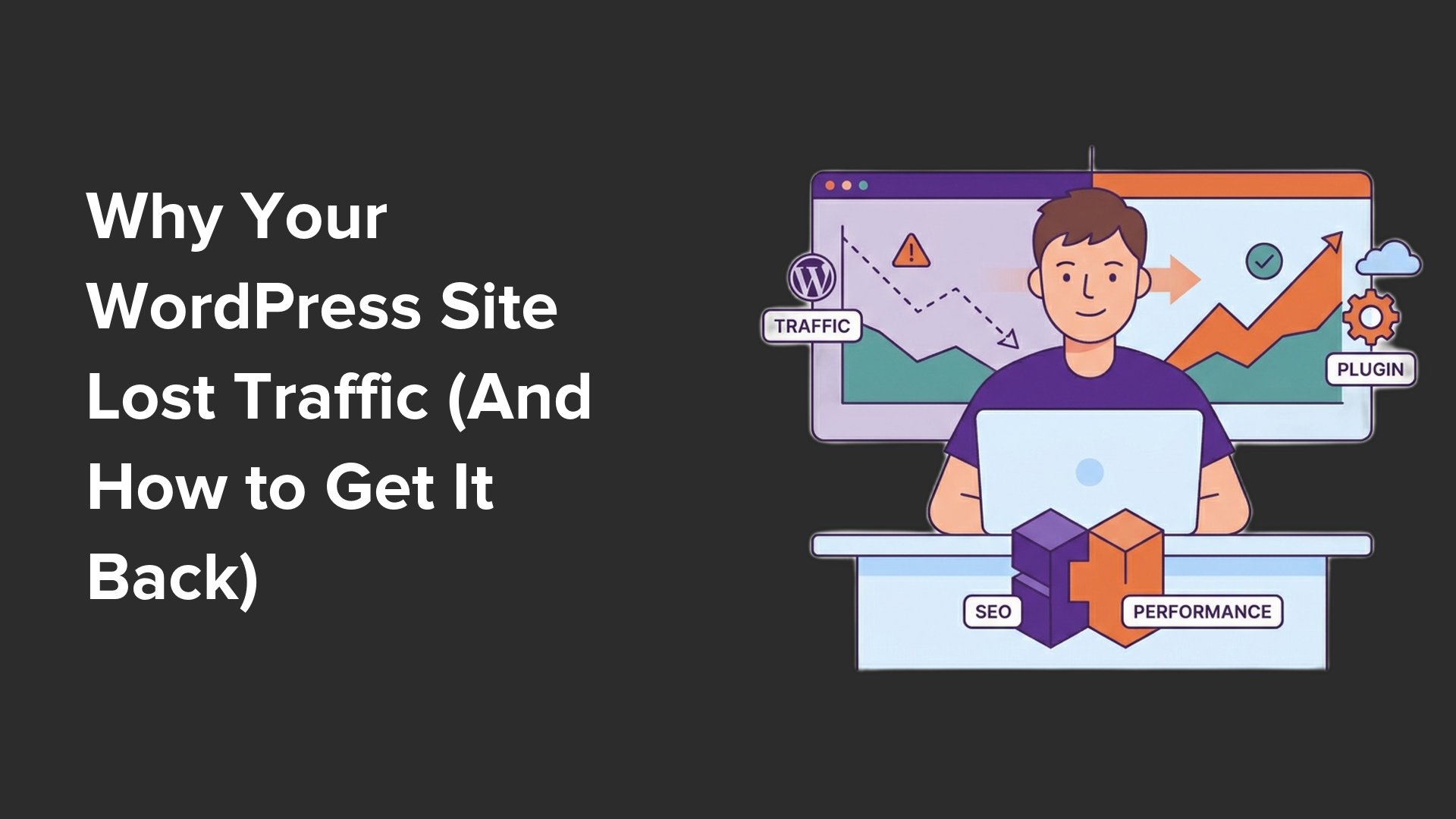
WordPress Traffic Drops: Causes and Recovery

WordPress Traffic Drops: Causes and Recovery

Seeing your website analytics plummet is disheartening. But before you assume the worst, remember that a sudden decline isn’t always a penalty. At WPBeginner, after managing high-traffic sites for over a decade, we’ve identified three main categories: tracking failures, external changes like Google updates, and internal issues from site modifications.

Start by verifying your data is real. Use a plugin like MonsterInsights to compare current traffic to the same period last year; seasonal dips are normal. If traffic hits absolute zero instantly, your analytics connection likely broke—just reconnect via the settings screen.

Next, check Google Search Console for manual actions or security issues. A human reviewer may have flagged your site for thin content or unnatural links. If you see a penalty, clean up the problem and request a review. For algorithmic drops, use All in One SEO’s Search Statistics to overlay update dates and pinpoint exactly which posts lost rankings.

Audit your own changes: ensure “Search engine visibility” is unchecked in Settings > Reading, and review security plugin settings for overly aggressive bot detection. Use AIOSEO’s 404 logs to find broken URLs from permalink changes or deleted content—always set up 301 redirects. A speed test via Google PageSpeed Insights can reveal if a new theme or plugin slowed you down.

If those steps fail, scan for malware. A site:yourdomain.com search may show strange titles or injected links. Run a security scanner like Sucuri and check for unauthorized admin users. After fixing the issue, use MonsterInsights’ Site Notes feature to annotate when you made changes, helping you correlate traffic recovery over the following weeks.

Finally, remember that recovery takes time—from days for technical fixes to months for algorithm impacts. Keep monitoring your site’s health with regular backups and a solid SEO foundation to prevent future drops.

Posted on Leave a comment

Top 9 WordPress Consulting Themes for 2025

Top 9 WordPress Consulting Themes for 2025

When someone lands on your site for the first time, you only get a few seconds to make an impression. Your theme plays a huge role in that. Most generic themes aren’t built with consulting needs in mind—they lack the right trust signals and page structures. After testing over 20 options, I’ve narrowed down the nine best consulting themes that are fast, easy to set up, and designed to convert visitors into leads.

If you’re in a hurry, here’s a snapshot of my top three picks: Sydney by aThemes is the best overall—it’s easy to set up and looks professional right away. SeedProd uses AI to generate a complete site in under a minute. Divi gives agencies total creative control with a huge library of layouts.

Why does the right theme matter so much for a consulting website? Because your site’s job is to build trust and encourage potential clients to reach out. A slow or cluttered theme can cost you leads before anyone reads a word. The ideal theme creates a credible first impression, makes services easy to find, and grows with your practice.

I evaluated each theme based on setup speed, starter site quality, page builder compatibility, customization depth, mobile responsiveness, and performance. My aim was to find themes that work well in real use, not just in polished demos.

Sydney by aThemes stands out as the top choice. It offers a free version that rivals many premium themes. I imported its consulting demo and had a working site with a strong headline, services overview, testimonials, and a clear call to action within minutes. The pre-designed sections made it easy to customize with Elementor, and the mobile responsiveness was solid.

SeedProd is perfect if you want a custom look without a developer. I entered a company name and description, and the AI generated a complete, polished site in under 60 seconds. The drag-and-drop builder let me adjust anything in real time, and the layouts were automatically responsive. It’s not a traditional theme, but it’s incredibly fast and flexible.

Divi offers unmatched creative control with over 2,600 page designs and 200+ modules. I imported a coaching/consulting layout and found it well-structured for services and calls to action. The lifetime pricing option makes it cost-effective for agencies managing multiple client sites.

Ultra by Themify brings a distinct visual personality to consulting sites. Its built-in Themify Builder works seamlessly without third-party tools, and the Accountant demo I tried had bold layouts and strong visual hierarchy. It’s ideal for design-oriented firms.

Neve is a lightweight, mobile-first theme built for speed. Its drag-and-drop header and footer builder saved time, and it integrated perfectly with Elementor and Beaver Builder. The portfolio feature is great for showcasing results.

OceanWP offers deep customization even in its free version. The Thrive demo imported smoothly with services, about, contact, and events sections. The theme settings let me adjust typography, colors, and layouts without code.

Business3ree is a modern, dark-themed option for budget-conscious startups. It’s focused and professional, with ready-made consulting pages and video hero support. It’s best for solo practitioners who want a credible site without extra complexity.

Inspiro takes a media-first approach, perfect for creative firms like branding or architecture agencies. Its consulting demo includes a hero video, and the custom Elementor modules are built for visual storytelling. The grid portfolio and subtle animations make a strong impression.

Astra is a minimalist theme that excels in performance and scalability. Its consulting starter site loaded fast, and the theme handled additional pages and a blog without any issues. It’s SEO-friendly and works well with most page builders.

In conclusion, your best choice depends on your needs. Sydney is ideal for solo consultants wanting a fast, credible launch. SeedProd offers a unique AI-powered approach for custom designs. Divi suits agencies that need extensive layout options and control.

When building your consulting site, also consider adding a contact form and appointment booking plugin. By choosing a theme that aligns with your goals, you’ll create a site that attracts and converts clients effectively.